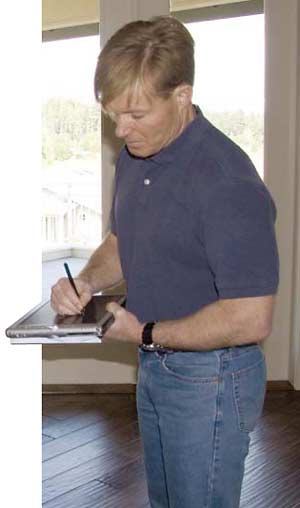
My company has built custom homes in Washington state’s San Juan Islands since 1989. It’s a family business: My wife runs the office and takes care of customer service and interior design, and I design homes and manage the construction.
We have no employees, which has always put a brake on our ability to grow the business. Although we could have handled extra design and client work, the myriad details and people that have to be managed for each project — everything from scheduling subs to the inevitable quality-control problems that have to be solved — meant that we could effectively handle only a couple of jobs at a time.
Or so I thought. I learned otherwise about three years ago, when we took on a 51-home subdivision. Since this would mean having as many as six homes under construction at a time, I figured I’d have to hire a project manager or two. But it turned out that those hires weren’t necessary, thanks to a powerful new tool I bought — a tablet PC computer that I now carry everywhere.
We’d used computers for bookkeeping, project management, and design for years, but only in the office. Out on site, where I spend about 70 percent of my time, pen and paper always ruled. My field management system was a stack of yellow legal pads, with one pad for each job and one page for each job phase: foundation, framing, siding, plumbing, and so on.
The problem was that with so many sheets of paper floating around in my truck, it was hard to find information when I needed it. And I still had to transfer everything to the computer back at my office.
I kept a notebook computer in the truck, but it wasn’t good for much beyond looking things up online and typing the occasional e-mail. What I really needed was something I could take with me when I walked through a house. I had tried handheld voice recorders and PDAs, but both fell far short of my needs. There seemed to be no way to free myself from the yellow pads.
Then I read an online article about tablet computers. The more I learned, the more I started to think, “Wow, this is my yellow tablet, but it’s electronic.”
In fact, my tablet computer has proved to be much more. It weighs only 3 pounds and is the size of an 81/2 x 11 sheet of paper, but it’s tripled the amount of work I can manage.
Hardware Package
I use a Motion 1400 tablet PC from Allegiance Technology Partners, a company that sells and configures tablet PCs for professional users. The 1400 is a standard Windows XP computer.
It’s a “slate tablet,” which means there’s no keyboard. There’s a docking station for use in the office, but you can do anything you’d do with a keyboard and mouse by touching the screen with the digitizer pen. Handwriting recognition is part of the operating system — and the computer understands almost everything I write — but I rarely use this feature. My personal preference is to keep notes and e-mails in my own handwriting.
Cost for the tablet — including a 60-gigabyte hard drive, one gigabyte of RAM, and a docking station (keyboard, 21-inch monitor, separate mouse) — approached $4,000. Reps at Allegiance Technology tell me that most builders get by with 512MB RAM and a 30-gigabyte hard drive, but I needed the extra memory for my CAD software.
Like most portables these days, the 1400 is wireless-ready, with built-in WiFi and Bluetooth capabilities. It also has a PC slot where you can connect a cellular card. I’ve used only the WiFi; a wireless router in the field office at my subdivision gives me a range of about 300 feet, and there are enough wireless hotspots to meet my needs when I’m working around town. If there’s no signal when I send hit the “send” button, the computer will just hold the message until it senses a signal, then send it automatically.
The screen is bright enough to view outdoors, although in direct sunlight it’s not as bright as I would like. Still, I never have to squint to read what’s on it.
Battery life is an issue with any portable computer. I’ve found the tablet’s battery life to be fine for day-to-day use, but I do carry an extra battery just in case. To conserve power, I turn the wireless off when I don’t need it.
The 1400 has a built-in fingerprint-scanner, which I use instead of a password. It allows eight different scans of fingers, but I ended up using six of them just for my thumb, scanning at six different angles so it works every time.
The computer has held up well on the job site. It comes with a removable cover for the screen that snaps onto the back of the tablet. I also bought a protective film to shield the screen from scratches.
Field Software
The tablet software allows me to do everything that can be done with a standard PC: send and receive e-mails, keep detailed project files, track bids and estimates, even make design changes.
The following programs are the ones I’ve found most valuable in the field.
Microsoft OneNote. This is my primary field application. I use it constantly. It’s a note-taking application that lets me take the same handwritten notes I previously wrote down on paper — but it also helps me organize those notes and search for data, same as with any digital file. It does an excellent job of searching even my handwritten notes.
OneNote’s screen interface has tabs across the top that look like manila-folder tabs. Instead of pulling down a menu, you just click the tab to open a folder. Inside each folder, additional tabs down the side of the screen lead to individual pages.
This lets me use OneNote the same way I’d previously used the yellow pads, with a folder for every house I’m building and a page for each job phase. I usually end up with 30 pages in each folder; unlike paper pages, they can hold an unlimited amount of text.
The folder system is great for keeping track of job progress. When I do my daily walk-through of a unit, I start a page for that day’s punch list and simply write down the tasks that need to be done by each trade. I list items that need correction, along with their location, and put the initials of the responsible sub — the electrician, the finish carpenter, the painter — next to each item.
An icon lets me e-mail the list directly from OneNote; the program uses Microsoft Outlook. About twice a week, I send the punch lists to an e-mail subgroup consisting of all my subcontractors. The subs read down the list, and if they see their initials, they know they have an item to complete. If they don’t see their initials, they can ignore the list.
I always choose the receipt option, so I know they received the e-mail. Since I began doing this, I haven’t once heard the excuse “I didn’t get the e-mail.”
OneNote makes my life easier in other ways, too. For instance, if I’m walking down the street and the siding contractor calls to say he needs 3,200 feet of cedar for the soffits, I can open OneNote and write it down in the appropriate page, then go to the e-mail tab to send the order to my lumber supplier.
I can also scan directly into OneNote, which has proved to be a real time-saver for correcting code issues (I use a portable USB scanner).
When something doesn’t pass inspection, I get a correction notice from the town with the items that need to be corrected. In the old days I’d call each affected sub on my cellphone and explain what needed to be done. Now I simply scan the correction notice into OneNote and e-mail it along. If needed, I can attach a note, such as: “Correction items that need doing before noon tomorrow.”
The scan and e-mail tasks take less than three minutes, and since the subs get a copy of the notice, I don’t have to spend time explaining it.
UDA Construction Office. UDA is a scheduling and project management application based on Microsoft Office (the interface is an Excel spreadsheet) that integrates with my QuickBooks Contractor Edition accounting software. I keep a separate schedule on the tablet for each unit, so I can instantly see where each project is and what needs to be done to catch up.
UDA also lets me make schedule changes in the field. Before getting this program two years ago, I used Excel to write my own schedules and then sent them to my subs at the beginning of each job. The schedules were static, which meant that a change would not automatically update subsequent tasks. When one task got delayed, I would have to make a whole bunch of phone calls to adjust everyone’s schedule.
With UDA, by contrast, if the trusses are two days late I simply change the date, and the program automatically adjusts the schedule for every trade that follows. I then send the new schedule to my subs and label it with the unit and date so they can adjust their schedules accordingly.
Schedule items are also exported to my Outlook calendar and Tasks list, so I don’t even have to open UDA to see what’s going on that day.
Internet Explorer. I use the Internet a lot in the field. If the granite guy needs a sink template, I can download it from Dimension Express, a subscription service I use almost daily; it offers dimension specification sheets for thousands of appliances, fixtures, and other products. Or if I have a question about how to weather-seal a window, I can go to an online forum to see how other builders have handled it.
I can also look up prices and get answers to code questions, tasks that used to mean hours on the telephone or a trip back to the office.
SoftPlan. I design my own homes, so I’ve been using CAD software for years in the office. I used to carry a set of blueprints in the field. Even a simple change, such as reversing a door swing, would mean marking up the blueprints, then transferring the changes to the computer back at the office. Having SoftPlan on my tablet eliminates the need to carry the prints and lets me make changes to the drawings in the field.
SketchUp Pro. This is an incredibly useful freehand sketching software — a geometry program rather than a CAD program. It’s my starting program for concepts. It’s also three-dimensional: I can sketch a drawing, then rotate it as if it were a model. I can even create a 3-D object, like a front door, in SketchUp and import it into SoftPlan.
SketchUp is also a great tool for exploring changes and communicating them to clients and subs. For instance, I can quickly create an accurate 3-D model and work up several design options.
I also use the program to submit proposals and sketches for preliminary review to city agencies.
SyncToy. Back at the office, I use this free synchronization tool from Microsoft to keep the tablet in sync with my desktop computer.
The Benefits
All this software took time to learn and master, but that would have been the case no matter what computer it was installed on. Also, my subs had to get used to checking their e-mail every day and responding to the items that pertained to them.
Other than that, there wasn’t much of a learning curve. The tablet itself is quite easy to use. When I’m heading out of the office to the job site, I grab it from its docking station and snap on the screen cover. I don’t even need to turn it on or off: It goes into sleep mode and awakens at the tap of my pen.
Since I can write on it just as I would on paper, I take it everywhere. Its note-taking and e-mail capabilities mean there’s a lot less paper to deal with and far fewer phone calls to make. I can quickly answer questions from clients and subs without guesswork, and I always have a record of what I do.
In short, the tablet allows me to do more work in less time and without extra staff. I’m less stressed, too, since having everything on my tablet means that I have less clutter in my head to keep track of. At this point, working without a tablet computer isn’t an option. I honestly don’t know how I ever got by without it.
And if you look in my truck, you won’t see a single yellow pad.
Ron Paulkowns Paulk Custom Homes in Anacortes, Wash.
For More InformationAllegiance Technology Partners Microsoft OneNote www.office.microsoft.com/onenote Dimension Express UDA Construction Office SoftPlan SketchUp Pro |