Extra horsepower. Higher reach. More LF per day. As contractors, we’re brainwashed to believe that more, faster, and bigger are always better, but that’s not necessarily the case when selecting your IT (information technology) gear. As a technology consultant, one of my main concerns is making sure clients get a good return on their investment. It boils down to spending extra for quality where it counts but not wasting money on bleeding-edge features nobody will ever use; and using the power of the Internet to find good deals on overstocks and reconditioned equipment.
Information technology is kind of like a backhoe. A good operator can do a lot of work with a few simple controls. But the machinery behind those levers is not so simple, and you won’t find a good backhoe operator who doesn’t know how to use a grease gun or replace a leaking hydraulic hose. Unless your company is big enough to hire a full-time IT manager, you’re going to have to learn the basics of what makes your computer gear tick, what to buy and what to avoid, and how to do basic maintenance to keep it all running. If you’re not willing to do that, you’re better off sticking with pencil and paper. This guide shares some of what I’ve learned over the years about buying hardware and software. It will give you a start in the right direction.
Purchasing Strategies
I use several strategies to help builders and remodelers get the most for their technology dollars, and an overall plan for purchasing and maintaining IT gear is usually going to combine all of them.
Plan-me-downs. Remember when work trucks rusted or needed an overhaul in three years? Now you can’t kill them. Likewise, not that long ago, PC standards were changing so fast that anything you bought was obsolete by the time you got it home. Today, universal acceptance of Windows and the explosion of the Internet have slowed things down. Almost all technology vendors have had to change their focus toward common standards. Today, for most small business users, there’s little difference between a three-year-old PC running Windows 2000 and a brand-new Windows XP barnburner. That means if you buy quality new gear, you’ll be able to squeeze more years out of your purchase than ever before. It also means that you can save a lot of money upfront by going with good refurbished equipment, and still expect to get decent life out of it.
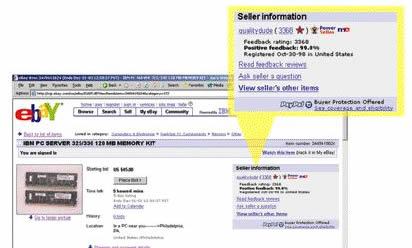
Going once… going twice…. The Internet has had another unexpected impact on our industry. Auction sites are now reliable sources of good used, refurbished, and overstocked computer hardware and software, as well as upgrades and repair parts. eBay (www.ebay.com) works particularly well because it’s totally self-policing. Negative feedback from dissatisfied buyers is the kiss of death for an eBay merchant. Good sellers on eBay have to bend over backwards to keep their record squeaky clean, or they’ll be banished from the kingdom by a mob of angry buyers. To buy from eBay, you usually have to set up a free PayPal account (www.paypal.com), which lets you transfer money electronically to the eBay sellers. Most (but not all) eBay merchants prefer that method of payment.
Price watch. Here’s another Internet gem. If you’re wondering whether the prices you’re finding online or at your local computer shop are legitimate, you can use Price Watch (www.pricewatch.com) to double-check them.
When to shop locally. Online merchants and auction sites are convenient once you know the ropes, but if you’re just getting started, there’s nothing better than a live person you can talk shop with. Just about anywhere you go, you’ll find a local shop that builds “beige-box” desktop computers and network servers for local businesses and provides basic networking expertise. I’ve found prices and quality to be very competitive with mail order in most places, but more important, you can talk to a true expert who is not located in India or Indonesia. These people often get into the computer business for the same reasons you got into contracting — love of the hands-on work. To find a reliable shop, skip the yellow pages and ask the retailers, insurance offices, and medical clinics in your town who they use.
Software Buying Tips
I almost never buy general business software through conventional channels anymore. With a little patience, you can save hundreds if not thousands of dollars using eBay. I recently picked up a current legal copy of WinFax Pro (normally around $100) for $10, and licenses of ACT!, Microsoft Office, Project, and Windows can almost always be found for 30% to 50% less than at the store.
On eBay, “NIB” or “NB” means “New in Box.” These will be full, unopened retail versions of software, probably overstocks or liquidations that have found their way online.
You’re also going to find lots of OEM (original equipment manufacturer) software licenses available on eBay. These will be disk only, or even paper license only, with no retail packaging or manuals. To comply with OEM licensing requirements, dealers often must include a piece of hardware, so don’t be surprised to find a couple of screws or a drive cable packaged with your order. Buy OEM software only from established dealers, not individuals who might not understand these licensing rules.
What not to buy. eBay does not work well for specialty applications like CAD or estimating, because those applications often require a license transfer fee to be paid to the original vendor, if you can transfer them at all. AutoCAD, for example, can no longer be easily transferred from one company to another, so buying from a private seller on eBay would be a waste of money. Always check with the vendor if you’re not sure.
One last tip for software shoppers: The release of a new version means there will be lots of previous version licenses available at rock-bottom prices. I often buy the older version for pennies on the dollar and then upgrade it later for less than the cost of a full license.
Equipping Your Office
Even with portable computers becoming more popular, the desktop or mini-tower computer is still the anchor of the typical small contractor’s office. The good news is, serviceable new machines are available almost anywhere for under $500. I was in the supermarket recently and saw a pile of shrink-wrapped PCs taking up space usually allocated to Diet Coke. You could pick up a computer when you run out for milk! The bad news is, in order to keep prices at rock bottom, manufacturers cut corners, and from a contractor’s point of view they’re usually the wrong corners.
Seen but not heard. Bathroom vent manufacturers have to list how loud their products are, so why don’t computer manufacturers? Desktop computer hard drives and cooling fans can make a lot of noise. Two or three noisy computers in your office and you can’t hear yourself think. Try to listen to the model you’re considering in a quiet room before you purchase. While you’re at it, pop in a CD or DVD. Some bargain drives are so loud that they’re unusable for playing training lessons or background music.
Monitor, Keyboard, Mouse
These are the “hand tools” of your computer. You wouldn’t use homeowner-grade junk tools on a project, so don’t put up with them on your computer, either. Get the bargain computer but dress it up with good-quality peripherals.
Monitor. A crisp 17-inch LCD (flat-panel) display will completely change your computing experience for the better. Look for name brands (Viewsonic, Samsung, Sony) with contrast ratios of 400:1 or better. You should be able to find an open-box special for under $400 if you shop around.
Keyboard. That $5 “stock” keyboard can actually injure a touch-typist. For $50, you can substitute the best: a Unicomp IBM-style keyboard, available online at www.pckeyboard.com.
Mouse. Back when I was doing a lot of CAD work, I spent many a night with my hands iced down because I was too cheap to upgrade to a decent mouse. Today, for around $20, you can replace a dimestore “stock” mouse with a comfortable Microsoft optical model (no ball to clog up). Or consider an ergonomic pointing device like the $100 programmable Kensington Turbo Mouse Trackball (www.kensington.com).
Hard Drives
The hard drive is the storage cabinet of your computer. Most desktops have a single consumer-grade ATA (advanced technology attachment), or EIDE (enhanced integrated drive electronics) hard drive — lots of storage for not much money. Unfortunately, they’re not built to last. Hard drive failure in 12 to 18 months is becoming commonplace, so you need to take other precautions to protect your critical data.
What to buy. Consider adding a second hard drive and a RAID (redundant array of inexpensive disks) controller card, so that identical copies of your data are written to both drives at the same time. StarTech (www.startech.com) makes a good ATA RAID controller for around $50. Note that drive mirroring won’t do you any good at all if the computer burns up in a fire; you still need good backups.
RAM
If your hard drive is a storage cabinet, RAM (random access memory) is the workbench. The computer takes information off the hard drive (out of the storage cabinet) and puts it into RAM so work can be done on it. The more RAM you have, the more work the computer can do. Econo-boxes often come with 128MB (Megabytes), which is not enough.
What to buy. You really need at least 256MB of RAM to reliably run Windows 2000 or XP software, and more is better yet. Adding an extra 128MB to most machines should cost under $50.
What not to buy. Avoid buying computers that require RDRAM, or Rambus. While arguably a little faster than conventional memory, Rambus is several times as expensive and can be hard to find when it’s time to upgrade.
USB 2.0 and Firewire
Universal serial bus (USB) lets you plug in just about any peripheral — from printers and scanners to network adapters, external drives, and more — without opening the computer case. USB 2.0 is 40 times faster than the original USB 1.1. “Firewire” (a.k.a. IEEE 1394) is another high-speed connection, usually used for external hard drives and digital video gear.
What to buy. There’s no need to choose between USB and Firewire: You can get both in a single add-in card from Belkin (www.belkin.com) and others for around $50. The same card will bring an older USB 1.1 computer up to speed as well.
Optical Drives
The CD burner has become indispensable for sharing files with clients and colleagues, making archive copies of your software CDs, and doing basic data backups. CD-Rs (recordable) are cheap and reliable.
What to buy. The latest twist in optical drives is the DVD recordable. DVDs look identical to CDs but can hold 4.7GB (Gigabytes) — about eight CDs worth — on one disk. There are several competing formats, so look for a DVD recorder that will handle all of them, such as the $220 Sony DRU-530 (www.sonystyle.com), which reads and writes both DVD+R/RW and DVD-R/RW, as well as CD-R/RW.
What not to buy. Avoid DVD-RAM drives. The media is expensive, and compatibility with anything else is nil.
Network Adapter
You need an Ethernet adapter, or NIC (network interface card), to set up a wired network or even to get online with an Internet broadband connection. Most new computers today will have a plain vanilla NIC already integrated on the motherboard.
What to buy. If you’re having a computer built, you’ll get better performance if you spend an extra $15 on a name-brand add-in NIC. My favorite brand is 3com (www.3com.com).
CAD/Graphics Workstation
Say CAD and the computer salesperson will try to sell you a Cray Supercomputer. You don’t need it. Practically any computer that can run Microsoft Office will also run any CAD or graphics applications that JLC readers are apt to use. However, if you depend on CAD or have users who work in CAD or other engineering or graphics software full time, it makes sense to spend a few bucks to optimize a workstation for them. John Jones, VP of SoftPlan Systems, Inc., says, “The best upgrade for CAD is the biggest monitor you can afford….” With excellent 22-inch CRT (tube) monitors dipping below $500, and 19-inch LCD screens below $1,000, it doesn’t make sense to skimp.
Extra RAM. For CAD and graphics work, double my minimum RAM recommendation to 512MB or even more. 1,024MB (1GB) will add only about $300 to a new computer.
Video Card
SoftPlan, Chief Architect, and other contractor CAD applications use “OpenGL” or similar technology to pan, zoom, and display 3D models. Upgrading your video card to one optimized for that technology can speed things up. You can find decent 2D and 3D graphics cards from ATI, Matrox, and others for around $50 to $75.
If you want to invest a little more, consider a multidisplay adapter from Appian Graphics (www.appiangraphics.com) or Matrox (www.matrox.com). Multidisplay technology allows you to display a floorplan on one monitor and a 3D model on the other, a CAD drawing on one monitor and written specifications on another, or use both monitors at the same time for a giant “virtual” desktop. Prices start at around $250.
What not to buy. Buy a fast machine for CAD, but don’t pay a huge premium for a cutting-edge processor or video card. Believe me, there will be no noticeable difference between a 3.2Ghz Pentium IV and a 2.8Ghz Pentium IV, except how much lighter your wallet will be. And you can spend $500 on a video card that’s built for computer games and not get any better CAD performance than you would with the $50 model. Put the money you save toward a better mouse and a dual-monitor setup.
Network Servers
When you’re ready for a network server, remember that your business will depend on it being up and running. Setting up a server should be about one thing above all else: reliability.
Rack it up. Having your network gear properly rack-mounted instead of piled up on makeshift shelving (or the floor) is the difference between working out of a well-organized utility truck and working out of the back of a station wagon. Bolting everything into a rack keeps it all neat and organized and eliminates the possibility of somebody knocking something over or accidentally disconnecting a critical piece of equipment. Rack-mount equipment is 19 inches wide and is specced in “rack units,” which are 1.75 inches thick. So a “4U” rack-mount case would be 7 inches from top to bottom and would occupy four spaces in your rack.
What to buy. Think of buying a network server like buying a stationary saw for your shop: If your budget is tight, you’re way better off with a used Powermatic 66 than with a brand-new 10-inch contractor saw from Home Depot. Processor speed isn’t that important, but network servers need the best hard drives you can find, heavy-duty power supplies, top-of-the-line network interface cards, and lots of RAM. My favorite small business servers are made by IBM, Dell, and HP, but there is nothing wrong with having your local integrators build you what you need, as long as they’re using top-shelf components.
Server Hard Drives
SCSI (small computer system interface, pronounced “scuzzy”) drives are typically more reliable, last longer, and offer better data throughput than cheap ATA drives. Network servers should always be equipped with some form of fault tolerance, at a minimum RAID-1 disk mirroring, or better yet, RAID-5 “striping,” which utilizes three hard drives or more, with each drive containing a piece (or “stripe”) of the others. Some servers feature “hot-swappable” drive controllers, which allow you to replace a failing hard drive without ever shutting off the power.
UPS
I don’t mean the shipping company. UPS stands for uninterruptible power supply, a.k.a. “battery backup.” Using a conditioned power source is the single best thing you can do to make sure your PCs live a long, reliable life. There are several brands, but I’ve had the best luck with APC (www.apc.com). Expect to pay around $100 for a unit large enough to handle the typical desktop computer, and $500 to $750 for a rack-mounted unit to handle your server room.
Data Backups
Small builders and remodelers are notorious for not doing regular backups, and I still haven’t found a backup tape or disk that could take itself to the safe deposit box on Friday. In my book, a good small office backup system must meet three requirements:
1. It must be completely automatic, or the backups won’t get done.
2. A copy of the data must be stored off site.
3. Your backups must be easily restorable should disaster strike.
What to buy. If you have a broadband Internet connection, the best way to make sure your data is safe may be to use an online backup service, which satisfies all three of my requirements. There are no tapes or disks to hassle with and nothing to take off site, and restoring your files is as easy as logging on to a secure website with your password. Connected Corporation (www.connected.com) offers 10GB of secure off-site backup for around $25 a month.
Printers
Color inkjet printers are now officially a dime a dozen. With rebates and sales, you can get one for free. What’s not free are color ink cartridges, which can add up to hundreds of dollars per year. If you do a lot of color printing, consider a color laser printer instead. What to buy. HP, Minolta/Konica, and Okidata all offer color lasers for under $700. The money you save on supplies will pay for the printer, and your documents will look more professional.
If you’re doing design work in-house, consider moving everything to 11×17 (tabloid) format. All the tradespeople I’ve worked with like the smaller size, once they get used to it. Unless you’re doing a huge volume of prints, a refurbished 11×17 laser printer will serve your needs well.
The HP 4V is a popular commercial-grade 11×17 printer that you can find for under $400 from online sources such as Landmark Printers (www.landmarkprinters.com). Landmark offers a seven-day tryout and a year of free parts and labor service on its refurbished units.
Scanners
With a decent scanner, you can archive piles of paper invoices and other paper documents to electronic form, and convert paper photos for use on your website or in printed brochures. Simple flatbed scanners are available for under $100 from a number of manufacturers, but I think the most versatile units are flatbed scanners with an automatic document feeder (ADF) on the lid.
What to buy. The HP 5530c is a solid choice. It handles 35 pages and costs $300. Visioneer (www.visioneer.com) also makes good flatbed scanners with 50-sheet ADF capability, starting at around $200. Many models are bundled with Scansoft’s (www.scansoft.com) excellent PaperPort software, my choice for small-office scanned document management.
Fax Machines
At under $100, “plain paper” fax machines are now the norm, but be careful. The bulk of these low-cost faxes require a wide printer ribbon, which can be expensive and hard to find when you need one in a hurry.
What to buy. Spend a little more and get an inkjet fax machine, such as the $130 HP 1010 (www.hp.com). Standard black inkjet cartridges are inexpensive and available everywhere.
Multifunction Printers (MFPs)
I’m asked a lot about MFP machines, the Shopsmith of office equipment. Typically, they combine a printer with a scanner-copier and maybe a fax machine. If you keep in mind that for $400 you’re going to get three $150 components, not three $500 components, I think these units can be a great addition to the small office. Some models are optimized for handling color digital photographs, with built-in memory card readers and six-color inkjet engines, while others are geared toward office copying and offer a faster laser print engine for fast black-and-white copies and prints. Some can even print on both sides of a document (duplex).
What to buy. The most useful models are the ones that combine a flatbed scanner with an automatic document feeder, such as the HP 6100 and 7100 series ($300 to $600) or the Canon MP730 ($400). If you want to be able to use the copier features to reproduce drawing details, look for the ability to enlarge or reduce in even increments of 25%, 50%, or 200%, so drawings will stay in scale.
Mobile Office Notebook Computers
Mobile computers should be mobile. That means small size, light weight, long battery life, and the ability to connect without wires. The 9-pound “desktop replacement” with the giant screen might seem like a good idea, but believe me, you’ll be happier with a more streamlined unit. If you think you need a larger screen for sales presentations, purchase a separate LCD monitor to take along as required. I think the best portables for most contractors weigh in at 3 to 5 pounds and have LCD screens in the 12- to 14-inch (diagonal) range. Realistically expect to spend $1,500 and up on a new unit. Most of my desktop advice (on RAM, USB, CD burners) applies to laptops as well, but there are some other features you should look for.
Mobile processors. The “Centrino” designation is a brand name that Intel created to incorporate the new Pentium-M processor with Intel’s own 802.11B wireless and video circuitry. Lots of good laptops use the Pentium-M processor, but don’t get the Centrino label, because the other components are not Intel’s.
What not to buy. Don’t buy any laptop that uses a desktop processor instead of something designed specifically for portables. Desktop processors run hot and suck battery life.
Wireless Connection
Being mobile means being able to get online no matter where you are. Just about any new laptop you buy will have a built-in dial-up modem and Ethernet adapter for wired connections, but that won’t help you when you’re in your truck. There, you’ll need two separate wireless technologies.
WiFi. I would not purchase a new laptop that didn’t have 802.11 wireless, or WiFi, built in. WiFi is a “local area network” (LAN) technology that you can install yourself in your office or at your job site, but there are also public “hot spots” popping up all over that let you get online at broadband speeds.
What to buy. There are currently three versions of 802.11: A, B, and G. Buy G. It’s faster, and it’s backwards compatible with B, which is what you’ll find in most public places. If you’re considering a reconditioned laptop, WiFi capability is easily added using a PCMCIA card, starting at around $50.
Going cellular. If there are no WiFi hot spots around, your next best bet is a cellular WAN (wide area network) connection. There are two ways to accomplish this. The simplest is to use a “data connection cable” along with your cell phone, assuming your phone has one available. Minutes get billed against your existing wireless plan, and an extra monthly fee usually applies for data access.
If you don’t want to tie up your cell phone while you’re online, a slicker way is to use a dedicated cellular PCMCIA modem card in your laptop. Expect to spend around $200 to $300 for the modem card, with a service agreement.
Other Laptop Options
I’m often asked about the “ruggedized” laptops and tablet PCs, like the Panasonic Toughbook (www.panasonic.com/computer/toughbook/home.asp). These portables are built with extra shock mounts, watertight keyboards, and other features that definitely help them withstand the rigors of the job site. Some have built-in wireless connectivity and even GPS receivers. The trade-off is that for the money, the technology is usually a little behind (you spend more and get less), and because they’re specialized, parts and service are not as available as with conventional laptops.
If you don’t want to spend $2,000, consider a reconditioned laptop. My company purchases off-lease corporate-quality IBM ThinkPads, completely refurbishes them to like-new condition, and makes them available to clients for around $600 and up, depending on the configuration. That’s no more than a high-end PDA, but I think it’s a much better investment because you can do so much more with them.
When we recondition a laptop, we typically put in more RAM and a bigger hard drive than the computer had when it was new, and make sure it has a working AC adapter and battery.
What not to buy. Watch out for machines that are just repackaged, not actually reconditioned. “Factory refurbished” could mean by a sweatshop in Indonesia, not in the original manufacturer’s “factory,” as you are led to believe. If you’re not sure, call the reseller and ask.
Which brand? The brand of laptop I recommend most often is the IBM ThinkPad. It’s not “ruggedized,” but it is rugged. ThinkPads are geared toward fleets of corporate road warriors and are modular in design, so they’re easy to fix if they break. Repair parts are always available, even for older models, and the computer can be taken apart with standard tools.
If for some reason you don’t like ThinkPads, Toshiba, Dell, HP/Compaq, Sony, Sharp, and others also make good laptops. Stick with brands you recognize, and chances are you’ll get a good machine.
What not to buy. Unlike desktop computers, there is no such thing as a good “beige-box” laptop. The most reliable and trouble-free machines come from name-brand manufacturers.
PDAs
A personal digital assistant (PDA) should be thought of as a supplement to a computer, not a replacement for one. You still need solid computer skills to enter, manage, and synchronize information between the devices, and you’ll have to learn to deal with the limitations of a PDA. Contractors sometimes buy PDAs when they would be much better served with a reconditioned laptop and a portable printer. I think PDAs are most successful for certain very specific uses — for instance, for project managers to run Punch List (see Computers, 8/03) or scheduling applications (“Scheduling Software 101,” 3/04).
There are currently a handful of PDA platforms, including various versions of the PalmOS, Microsoft’s PocketPC, and the always-on RIM Blackberry wireless pager. Each has its advantages, and none is substantially better than the others. It’s just a question of whether they’ll run the applications you want to run. Today it’s fair to say that the lion’s share of residential constructionspecific PDA applications is built for the PalmOS, but the glitzier PocketPC is coming on strong, fueled by cheaper hardware prices and massive marketing efforts by Microsoft.
Realistically expect to spend $150 to $200 minimum for a PalmOS device with 16MB of RAM and the flash ROM (read-only memory) required for future upgrades to the operating system. Factory-reconditioned and leftover models from either Sony (www.sonystyle.com) or PalmOne (www.palmone.com) will do the job. On the PocketPC side, Dell’s (www.dell.com) Axim series, which starts at around $230 for a device with 32MB of RAM and flash ROM, is about the bottom end that will run third-party applications.
What to buy. Most PDAs are sold as personal gizmos, with a lot of features you don’t need on the job site. For your lead carpenters and project managers, buy the simplest, least expensive device that will do the job, keeping in mind that there’s a good chance it will wind up in the mud, or left on the dash of a pickup truck in the searing summer heat. BargainPDA.com (www.bargainpda.com) is a great website for keeping track of what’s available, and big-box office supply stores often run in-store specials that beat anything you can find online.
PDA Phones
Not every lead carpenter wants to be bothered with a laptop or even a PDA, but many live on their mobile phones, so putting PDA features in a cell phone is a match made in heaven. Add a decent point-and-shoot digital camera like you’ll find in the popular Handspring Treo 600 ($450, with a cellular plan), and the potential for an all-in-one communicationproject management device is huge. Unfortunately, not all available devices work on all cellular networks, and not all will support the third-party applications you need to run. So if you get one of these pocket rockets, you’ll be at the mercy of what your cellular provider will support.
What not to buy. Some PDA phones require you to plug in an earbud headset in order to use them as a phone, which is awkward and inconvenient on the job site. Go for phones with PDA features, rather than PDAs with phone features.
Tablet PCs
I’ve been lukewarm on tablet PCs. Not because the “digital clipboard” doesn’t make sense for builders, but because there hasn’t been anything that really took advantage of it, until now. As it turns out, the best way to buy a tablet PC may be to rent one — fully loaded. For $299 a month, Field2Base (www.field2base.com) will set you up with a fully insured tablet PC (run over it or lose it, and they send you a new one) loaded with a digital camera, full wireless connectivity, ConstructConnect software, and a hosting service for secure online access to all your project documents. If you can write with a pencil and click “on,” you can use this system to transform your paper forms into digital documents, mark up CAD files and digital photos, and send everything to whomever needs to see it — wirelessly. The price might seem a little stiff, but I’ve seen it in person — it’s magic. Go watch the demo at www.field2base.com/demo/default.htm.
Mobile Printers and Scanners
If you’re going to have a true mobile office, you’ll need a way to get paper in and out of your laptop computer. A USB-powered sheet-fed scanner like the tiny Visioneer Strobe XP100 ($150) fits in your laptop bag and is great for scanning everything from business cards to invoices on the fly.
For mobile printers, there are two schools of thought. If you’re primarily going to be in or near your truck and you have a DC/AC inverter installed (see below), any of the inexpensive conventional inkjet printers, such as the HP 3550 ($50), will do the job. (Be aware that subfreezing temperatures can affect inkjet cartridges.)
If you’re in and out of sales calls and would like to print colored documents on the spot, the battery-powered Canon portable bubble-jet printers (www.usa.canon.com) are still the gold standard. Even though they’re considerably more expensive ($250 to $350), they’re a proven solution.
More Power to You
Finally, the most important piece of gear in your mobile office is not a computer, printer, or PDA. A cheap “auto adapter” can fry your portable office gear in a hurry. Instead, install a high-quality 12VDC-110VAC inverter that hard-wires to your battery and provides enough juice to run a power tool or two in a pinch, in addition to your laptop and printer. Tripp Lite (www.tripplite.com) and Xantrex (www.xantrex.com) produce reliable models.
Joe Stoddard is a technology consultant to the building industry and a contributing editor to The Journal of Light Construction. You can reach him at [email protected].