The change order is the one document that small-volume contractors need the most but seem to use the least. This is probably because many small-volume companies tend to take on projects smaller in scope, and the smaller the scope of the projects, the greater the tendency to let certain systems and steps slide. On these types of projects, unenforceable verbal change order agreements get made every day, and when your office tries to bill for them you’re out of luck. Here’s a simple general-purpose change order that I’ve created from the Excel 2000 invoice template. It’s meant to supplement your office systems by making it possible for you or your lead carpenters to get approval in the field for all those small changes that can add up to big dollars.
Getting Started
There is no specific change order template in Excel, so I started with one that’s similar. Open Excel and on the FILE menu click NEW. Click the Spreadsheet Solutions tab, then double-click the Invoice icon, which will launch the template. You may see an ominous “Macro” dialog box. Macros are necessary for this form, so click “Enable macros” to enable them. Next click FILE, then SAVE AS. If prompted, keep settings on “create new record.” Rename the template CHG_ORD. Scroll the “Save as type” field to Template (.xlt), which will automatically add the extension and put the file in the templates folder. Click SAVE and close out of the file.
Editing the Template
When you click on NEW under the FILE menu, the template files open a document that is a copy of the template, you can’t open the template in this way to edit it. Instead, use FILE, then OPEN and drill down to the templates folder (for Windows98, typically C:programfilesMicrosofttemplates). On Windows2000 machines, the path to the file can be much longer, and the easiest way to find it is to use the SEARCH or FIND command, which is available from any folder in Windows2000.
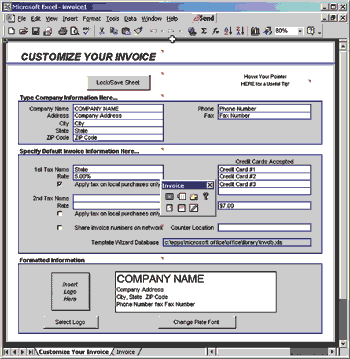
When you first open your renamed template, it should look like Figure 1.
Figure 1. The original unmodified template in Excel shows which fields need to be filled in. |
To make it easier to edit the template, first turn the cell row and column headers on. Go to TOOLS, then OPTIONS, and check the “Row & column headers” box under the VIEW tab. You’ll be editing both tabs of the workbook, starting with “Customize Your Invoice.” Heading. Starting at the top of the “Customize Your Invoice” sheet, combine cells D4, E4, and F4 by clicking with the mouse while holding down the SHIFT key, and then click the MERGE CELLS icon on the formatting toolbar (or click CELLS on the FORMAT menu, go to the “Alignment” tab and select the box “Merge cells.”) Now change the cells to read CUSTOMIZE YOUR CHANGE ORDER. Continue down the sheet filling in information and changing cell information as you go. When done, your sheet should look like the one in Figure 2.
| |
Figure 2. Once the original invoice template has been changed, you should have a change order template such as this one. |
Here’s a summary of the changes: Company information block. Simply add your company information in the fields.
Invoice information block. Change the field titles by either double-clicking in the cell and typing, or highlighting the cell and typing in the formula bar.
1. Change “Invoice” to “Change Order.”
2. Change the “Tax” fields to read “Overhead” and “Builder’s Fee” respectively with the labels Markup 1 and Markup 2.
3. Change “Shipping and Handling” to “Misc. Fee.” Be sure to add your percentages and information to the new fields.
Formatted information. The template automatically places your company information into the letterhead at the bottom of the sheet, but you can still add a logo and/or format the plate font style. I chose “Copperplate Gothic Bold” for the font, and added a company logo I created in Paintshop Pro. The logo needs to be roughly 1×1 inch in physical size, and should be some kind of bitmap format — .bmp, .gif, .tif, and .jpg all work.