Computers are supposed to make life easier, but small builders usually face a tough choice: Either try to turn off-the-shelf software into something it isn’t, or spend big bucks on a high-end construction package that is really designed for high-volume contractors. That’s the dilemma David Jones was trying to resolve when he set out to create SiteTrak. A tradesman himself, Jones couldn’t find any software for his boss to use, so he teamed up with his brother Brandon, a programmer, and formed Beacon Systems. The software they created is just what the doctor ordered for a lot of small companies trying to computerize their operations, or for contractors totally frustrated with the systems they’re using now. Beacon Systems calls SiteTrak a “job cost” program, but I prefer to think of it as a “job control” program. It isn’t accounting software, but it does keep track of your cash flow and it will manage your checkbook. It’s not a contact manager either, but it stores all the information you need about clients, suppliers, and employees in one spot. SiteTrak does, of course, handle job costing, automatically distributing payments and deposits to the appropriate job, but it also provides tools to analyze where your business as a whole stands at any given moment. The best thing about SiteTrak is that the average contractor who loads it on a computer will start to get good information about the financial health of his or her business within five minutes.
Sensible Interface
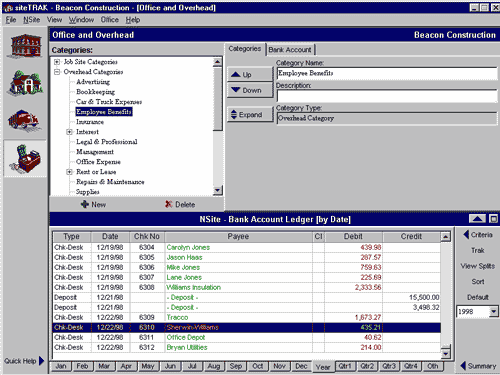
I’ve been around computers a long time, so I appreciate the value of SiteTrak’s simple and easy-to-use interface — even computer newcomers will be comfortable right away with this layout. The program is organized into four interconnected main sections, or “windows,” represented by icons on the left side of the screen. All four windows share the same general layout, plus a common “Bank Account Ledger” called “Nsite” (“insight”) at the bottom of the screen. Bank
. The Bank Entry window is where you enter payments and write checks (see Figure 1). Figure 1. The Bank window is where all checks, job payments, and other transactions are entered. Entries can be assigned to one category, such as a project or supplier, or spread or “split” across several. Categories are customizable by the user. Anyone familiar with Quicken will recognize the method of distributing bank deposits and checks across multiple jobs by “splitting” the transaction. For example, a check written to your local lumberyard at the end of the month might actually cover payments for invoices from several jobs; similarly, a single bank deposit might include payments from several projects. By breaking up these transactions, SiteTrak helps you keep track of where all the money is going. Job Site.
Tabs in the Job Site window enable you to set up or view jobs that are Current, Complete, or Future (Figure 2). Figure 2. The Job Site window takes the place of a filing cabinet, storing all vital job information, including customer name, address, and phone, directions to the site, and other notes. Jobs can be defined in or moved between one of three tabs — Future, Current, or Complete — giving the user the ability to update job status easily. This screen also serves as a contact manager for your customers, as well as a place to record notes about the job or client, directions to the site, and other pertinent job information. You can pick a job type (commercial, remodel, new home, etc.) from a category list, or create custom job types. The category list is nested, so individual clients can be listed under the more general categories. Supplier.
In SiteTrak, the Supplier screen lists not only material vendors, but also labor and subcontractors — anyone who provides materials or services to a job (Figure 3). Figure 3. In SiteTrak, “suppliers” include materialmen, subcontractors, and employees — anyone who provides something to a job. Each tab has its own set of fields; for instance, the Employee tab contains payroll information. Detailed information for each is entered on separate screens; for instance, the employee screen has fields for withholding and other payroll information, while the subcontractor screen would have different fields relative to those trades.