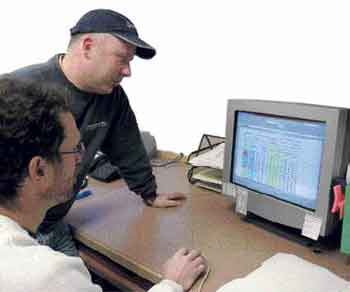
Trying to figure out why some jobs go well and others don’t can be a nightmare. Often there are so many factors involved, it’s impossible to get a clear read. Even answering simple questions can be tough: Are additions or kitchens more profitable? Why does one lead carpenter seem to produce more than another? Why do some jobs always run over on labor while others don’t?
With all the day-to-day responsibilities of running a company, who has time to track the kind of data needed to answer these questions? And so it is that many builders rarely know for sure why certain things happen.
Weekly Reports
A few years back, our company needed a system for tracking and reporting man-hours worked on individual jobs. At the time, we were using a report we would pull from QuickBooks after all the weekly timecards had been entered into the computer. We would present this report at our weekly production meeting, but it always seemed to raise more questions about each job than it answered. For one thing, the report told us only how many hours we had spent thus far on a given job; how much time was left in the bid — and whether that was enough to finish the job — remained a mystery.
To get a more in-depth look at our jobs, we created an Excel spreadsheet that compared the total man-hours budgeted with a revised estimate of how many hours we thought the work would take. We got the revised estimate by adding the hours spent to date (taken from our weekly QuickBooks report) to the number of hours we thought it would take to complete the remaining work. This gave us a clear idea as to whether we would hit the labor budget.
Each week I would add any new jobs and change orders that had been sold, update the actual hours used, and revise the projected hours needed to finish. Within a few minutes of entering the data, I had an updated report I could take to the meeting.
The spreadsheet was a big improvement, and it worked for a while. But because we were selling roughly a job a week, my database was getting very large and unwieldy. The problem was that every job remained on the list — even the ones we had completed, which we kept for the valuable historical information they contained.
Over time, using pivot tables has enabled us to make intelligent choices based on real data, not gut feelings. |
A New Approach
One day, Randy Foster, one of our company’s owners, mentioned that I could create pivot tables in Excel that would allow me to manipulate the data any way I wanted. Randy wasn’t sure how to set them up, but if pivot tables would make my report easier to read, I was determined to find out how to make them. My guide was a book called Sams Teach Yourself Microsoft Office Excel in 24 Hours ($22.50, written by Trudi Reisner, www.samspublishing.com). After about two hours of working my way through this book, I could create a pivot table in less than a minute.
Right away, I added a new column — Status — to my database, and started using four words to describe each job: PRE for jobs sold but not yet under construction, OPEN for jobs under construction, DONE for jobs recently completed, and COM for jobs that had been completely closed out. I was now able to get a report that showed only open jobs with the particular data I wanted. I could also have Excel do the math from the pivot table and tell me how the company as a whole was doing on actual hours vs. hours bid. (This one bit of data allowed us to fine-tune our bids to the point where, companywide, we stay consistently within 2 percent of total hours bid.)
And, once a week, I could now get a report that was accurate and truly useful. We were able to spot jobs that were heading south and make proactive adjustments to head off trouble.
A Better Spreadsheet
A few months later, I developed a new spreadsheet designed to take full advantage of pivot tables. I wanted to be able to compare as much information about completed jobs as possible. I started by titling each column of the spreadsheet according to the information it contained: Job Type, Salesman, Lead Carpenter, Job Name, Total Man-Hours to Complete, Gross Revenue, Cost of Goods Sold, and Gross Profit. With the pivot table, I could now compare different kinds of job types. We soon discovered, for example, that we were repeatedly underbidding bathrooms. Why this was happening wasn’t immediately clear, but we were still able to add a percentage to each bathroom, which has increased the overall profitability of this job category.
We also can compare lead carpenters, to see which ones produce the highest overall gross profit — or, more important, if any consistently produce a low profit margin. With this ability to look at real facts, we can spot our problems and work on them. In the case of a lead carpenter whose jobs may be lagging in profitability, for instance, we can work with him to discover why the problem exists and how to overcome it. We’ve also found that showing crew members actual data really motivates them to improve.
We’ve found it too time-consuming to go backward and try to create databases from past job history. Now, when we sense a need to mine new data in some area of our business, we start entering it from that day forward to build the database. Over time, this has enabled us to make intelligent choices based on real data, not gut feelings.
In short, pivot tables have become a truly important tool for our company. They provide us with one of the best ways we know to distinguish what is real from what we only think is real.
How To Create a Pivot Table
More from Journal of Light Construction
-
Understanding HSAs
7 MIN READ
-

-