Download PDF version (1244.3k) Log In or Register to view the full article as a PDF document.

If you don’t have an online presence yet, now’s a good time to start

Image

Ten years ago, if I were asked whether a contractor needed a Web site, I’d have answered that it wasn’t absolutely necessary. Asked the same question five years ago, I probably would have said it was a good idea. Today, the Internet is practically a utility — like water, electricity, gas, and cable — and most Americans use it every day. If you don’t have a Web site, it’s time you got one, because that’s how more and more of your customers will find you.

Fortunately, building an effective Web site is neither expensive nor complicated. In fact, it’s well within the capabilities of anyone who can use word processing software and has some basic understanding of the principles by which the Web operates. Your first site may not win any awards, but if it’s easy to find — and it can be — it will be a 24-hour beacon, attracting customers looking for your particular services. That’s a type of advertising that newspapers, the Yellow Pages, and direct mail can’t provide.

Choosing a Web Services Company

Getting up and running on the Web involves several steps, from selecting and purchasing a domain name to designing your site to setting up an e-mail account. Each step can be completed independently from the others, but it’s less confusing to use a single Internet services company for everything, so that’s the approach I’ll describe here.

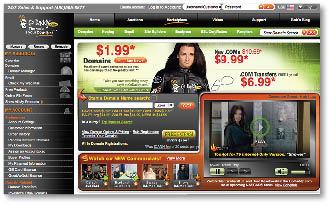
Three of the most prominent Web services companies are GoDaddy (godaddy.com), Network Solutions (netsol.com), and Register.com (register.com). I’ve used all three to buy and manage domains, and as far as I can tell there’s not much difference between them. Over time, I’ve switched most of my business to GoDaddy, which offers intuitive domain name searching, the lowest price for purchasing domain names, and a simple online Web-site building application called WebSite Tonight. On several occasions, I’ve had to call GoDaddy’s technical support, and each time I immediately got through to a knowledgeable person who was able to solve my issue in a few minutes. As a new Web-site builder, you may need some help along the way, and good technical support only a quick phone call away is worth its weight in gold.

Selecting a Domain Name

The first step is to register a domain name for your business — the “dot-com” you’ll use as your Web address. If the name of your business contains only common terms, it’s most likely already owned by someone else. Don’t get discouraged: You’ll still find a name, but you may have to get a little creative.

I happen to own the domain name that matches my legal business name. When I formed my LLC not that many years ago, I searched for available domain names before deciding what to call it. I knew I had one shot at selecting a corporate name and used the opportunity to find a matching domain name.

It may be too late for you to do that, but even if the domain name you want is taken, there are ways to work around the dilemma. (If your business’s domain name is in fact still available, buy it immediately, even if you’re not ready to launch your Web site; otherwise it could be gone in five minutes and never be available again.)

There are a couple of things to keep in mind when selecting your domain name. First, to be taken seriously by your Web-savvy customers, you must have .com at the end. Forget about .net, .org, .tv, or dot anything else. Those extensions should not be used for commercial purposes, regardless of what you might see around town. Dot-com is the only way to go.

Second, you should use geography to your advantage. While it’s nice to have your corporate name as your domain name, don’t worry if it turns out that isn’t possible. Instead, make sure your domain name is geospecific. A seasoned Web searcher knows that searching for vague terms like “remodeling contractor” will yield results from all over the Web, most of which will be unhelpful in finding a local business. So the searcher will key in “remodeling contractor [town name]” or “kitchen remodeling [county name]” to narrow the search results to contractors in his immediate area. Let’s say you’re a kitchen-and-bath contractor providing services in Austin County. Good domain names might be AustinKitchensAndBaths.com, AustinRemodeling.com, or AustinBathrooms.com.

There are other solid reasons for choosing a geospecific domain name. For one, you probably conduct most of your business within a set area; there’s no sense wasting resources advertising to areas you don’t want to work in. And for another, search engines like Google and Yahoo absolutely love geospecific domain names. If your domain name includes a geographic name that matches the search terms, the search engine will automatically rank your Web site higher than one without that place name. You can even use telephone area codes in your domain name — like 512Bathrooms.com, for example. Then someone searching “bathroom remodelers area code 512” would get a match.

If you service a wide area or multiple areas, you can register several geospecific names and have them point to individual pages within one Web site. There’s no need to set up separate sites for different geographic regions unless your services change from location to location. At less than $10 per domain name, you can plan on buying a few to cast a wide net for the search engines.

Purchasing a Domain Name

Using any Web browser, go to godaddy.com On the home page, enter your proposed domain name in the search box; if it’s not available as a dot-com, the next page will tell you so in big red letters and will also offer suggestions using other extensions [1]. Ignore those; you’re only looking for .com domains. (Through this entire process, all the Web services companies have the annoying tendency to bombard users with suggestions for revenue-generating add-ons. Generally these products are fluff, so just disregard them.)

Image

Keep entering domain names until you find one that is available. It can take awhile, and while you might have to get creative, try to avoid using hyphens and underscores. They only add confusion and clutter to the name. Domain names are not case-sensitive, so don’t worry about capitalization. (In fact, though most users type Web addresses as all lowercase, I always add capital letters when advertising the domain name in print, to help the reader separate the words more easily. It’s easier to comprehend AustinKitchenContractor.com than to read austinkitchencontractor.com)

Once you find an available domain name [2], make sure only the .com box is checked, then click the “proceed to checkout” button near the bottom of the page. Ignore the add-ons, go to the registration page, and fill that in. Next you’ll have options for the duration of your registration, starting with a one-year term; choose the one that suits your needs [3].

Image
Image

Also select one of the e-mail options, depending on the number of addresses and the amount of storage you’ll need. Adding e-mail services here will provide you with a professional address that matches your domain — greg@201Handyman.com, for example. If you’ve been using a “free” e-mail address like Gmail, Yahoo, Hotmail, or one from your service provider, now is the time to switch.


Next you’ll be presented with the option of customizing your order. Skip over the hosting plans and scroll down to WebSite Tonight; this is the design tool that will enable you to build a serviceable site [4]. By paying for a WebSite Tonight plan, you automatically get free hosting services. (Don’t choose the “free” WebSite Tonight option; although you’ll save a few bucks, it permits GoDaddy to place ads in the banner at the top of your Web site.) For your first site, the five-page option should be adequate. You can always add pages later for an additional fee.

Image

Finish checking out and fill in the forms to set up your account. Keep your user name and password in a safe place; restoring a password to a Web services account can be a time-consuming hassle because of all the security involved. When you log into your account, WebSite Tonight and e-mail services will be available for management on the left side of the GoDaddy page, under “My Products.”

Building Your Web Site

Log into godaddy.com and click on WebSite Tonight (under “My Products” on the left side) to launch the site builder. You’ll have to create another user name, password, and PIN to access the WebSite Tonight design tools. Keep your PIN handy, as this will allow you quick access to GoDaddy’s technical support.

You’ll find dozens of page templates ready for use, complete with graphics and clip art. You can build a simple site in a few hours by selecting a template, typing in your own text, and pasting in photos or graphics, which is the method I’ll describe here. (If you want more design flexibility, you can ignore the prebuilt site templates and use one of the “custom” layouts offered, but that takes a lot longer.)

Sample templates are organized by content area or business category; click through them until you find something that suits you. Don’t get too concerned with the provided text and graphics, or even with how the five sample pages are named — all of that can be modified to fit your exact needs. You can also back up your design attempts and change templates later if you want.

To illustrate the process, I’ve set up a site to generate traffic for the handyman segment of my business, using a template designed for a property-management company [5]. The default color of the template is navy blue, but since my corporate colors are forest green and a coppery orange, I select the orange color under the “Template” tab to change the background [6].

Image

Image

Next, I click on the “Site” tab and select “Launch Page Designer” under the “Design” tab [7], and the prebuilt design for my home page appears [8]. As the mouse cursor passes over parts of the page, the dashed borders change from gray to red. The area within any red border can be edited. But before I change any of the copy on the page, I want to edit the navigation links, which appear on the left side of every page; I’ve found that it’s best to do this now, before I’ve made substantial changes to the site.

Image
Image

At the top of the page, under the “Page” tab, I click “Edit Navigation” and a new box appears where I can rename the page links [9]. The template default names appear along the left side — “Home Page,” “Properties,” “Amenities,” and so forth. I highlight these one by one, changing the link name in the “Label” box and clicking the “Save and Continue” button between changes. Because I want these changes to carry through to all the pages of my site, I select “Apply navigation to all pages,” then click “OK” to close the editing window completely.

Image

When I’ve finished with this step, my link names now read “Home Page,” “Services,” “Rates & Fees,” “About Us,” and “Contact Us” [10]. But note that even after I’ve changed the name of a navigation menu item, the template continues to use the original page name. For example, after I change “Resources” to “About Us” in the navigation menu, the “Goes to” field still lists the page as “Resources.” This is harmless, but for my own sanity, I like to change the name of the template page — or “Filename,” as the program calls it — to match the navigation label. To do this, I pull down the “You are editing” menu at the top center of the page and select “Resources” [11]. Then, because I want to edit the page’s properties and not its content, I click the “Show Properties” link to the right; this opens a new page [12] where I change the Filename from “Resources.html” to “About.html.” On this screen [13] I can also rename the Heading Title (which is what’s displayed at the top of the Web page) and the Button Title (displayed in the pulldown menu at the top of the WebSite Tonight page) so that both read “About Us.” Last, I make another change that is crucial to search-engine success: I add a concise but descriptive Browser Title, which is what the visitor’s Web browser will display in its title bar. Search engines love descriptive Browser Titles, so I try to make each title a catchy summary of the page’s content and purpose. Rather than simply “About Us,” I enter “Small Job? No Problem: Bergen County’s Most Reliable Small Job Specialist.” The added description increases the odds a search engine will choose the page. I click “OK” at the bottom of the page and the changes are saved [14].

10

Image
11
Image

12

Image
13
Image

14

Image

New Text

With this behind-the-scenes work completed, I switch back to designing the home page by selecting it from the top-center pulldown menu and clicking the “Show Designer” link next to the menu. I click inside the dashed red box for the main title and change the text from the template’s default “Acme Brothers” to “Prompt, Friendly and Reliable Handyman Services for Bergen County” [15]. I also replace the default body text with my own copy. In the design mode, you’ll see familiar text editing tools in the upper left; you can highlight text and apply modifications just as you would in a Word document.

15

Image

To make it easy for a new client to reach me, I want my contact information to appear on every page of the site. I accomplish this by adding a text block at the home page, then “sharing” it across the site. At the top of the page, I click the “Insert” tab, then the “Block” icon below it [16]. A new block is added under the block that has the body copy in it. In the area provided, I add my contact information and format it so that it stands out [17]. I also add an e-mail address link by typing “Email Us,” highlighting it with the cursor, and clicking the “Create Link” icon in the text formatting palette [18]. I identify the link as an e-mail link, type in the target e-mail address, and click “OK” [19].

16

Image
17
Image

18

Image
19
Image

Before clicking “OK” to save the contact text block, I click the “Share” button at the top of the page [20]. Following the prompt, I give the shared content a name (“Contact info”), and automatically that block is saved for reuse on the other pages in the site [21]. To put the shared block on a new page, I place a new text block, click “Share,” select the item from the pulldown menu that appears on the right, and click “Insert Shared Content” [22]. If later I make any changes to a shared block, the changes propagate across the site.

20

Image
21
Image

22

Image

I add content to the rest of my site’s pages in pretty much the same way, though the contact page takes special attention because some of the lines need to be edited to fit my business. The prebuilt form is located inside a typical text block, so I double-click on one of the fields to open the “Edit Form” window [23] (next page). I make sure that on the left side of the window — underneath the words “On form submittal go to:” — the page is set to the one I want, usually the home page. That way, when users click the submit button, the next page they will see is the home page.

23

Image

When you submit a form online, it’s reassuring to see a confirmation message pop up. WebSite Tonight doesn’t offer this option, but when I have an unused page to use, I may create a “Thank You” page and use that in lieu of the home page. When I don’t have an extra page, I put a note below the submit button that says, “After clicking the submit button, you will be redirected to our home page. We will be in touch with you shortly.”

Next I check that the “Email to” address is correct, as well as the address where I want the form data sent. Finally, I click into the form itself, edit the text as needed, and click “OK.”

Importing New Images

At this point, the new Web site is ready for use, except for one detail: I want to replace the generic image of keys on the page template with my own company logo. I click the “Edit Template Images” icon near the top of the page. A window opens that shows all of the images used across the site template; it tells me that the photo of the keys is 186 pixels wide by 150 pixels tall [24]. Knowing the dimensions allows me to use an outside image editor to resize my logo to 186 pixels wide; height doesn’t matter in this instance. I save the logo on my computer so I can upload it to WebSite Tonight.

24

Image

With my new logo ready, I select the image of the keys and click the “Change Image” button above it. In the new window, I click “Upload Image,” browse to find my logo file, upload it, and click “OK.” My logo now appears in the template images window [25]; I click “OK” and the site template is updated [26]. Other template images can be replaced in the same way.

25

Image

26

Image

If you make it this far, you’ll have a site ready to “Publish.” You may want to tweak it for a few days first, using the “Preview” function. If you run into problems, you can call GoDaddy’s tech support. You’re bound to find them capable and willing to help.

Greg DiBernardo owns Fine Home Improvements of Waldwick in Waldwick, N.J.